How to
use it
Concert Timer is built to be used in the dark, in a hurry, with one hand. Most of it is obvious. This page is for the parts that aren't — and for the evening as a whole, from building the program to sending the timing sheet.
01
Before the concert
A concert is a name, a date, a hall, and a list of works. Nothing is required except the works.
Building the program
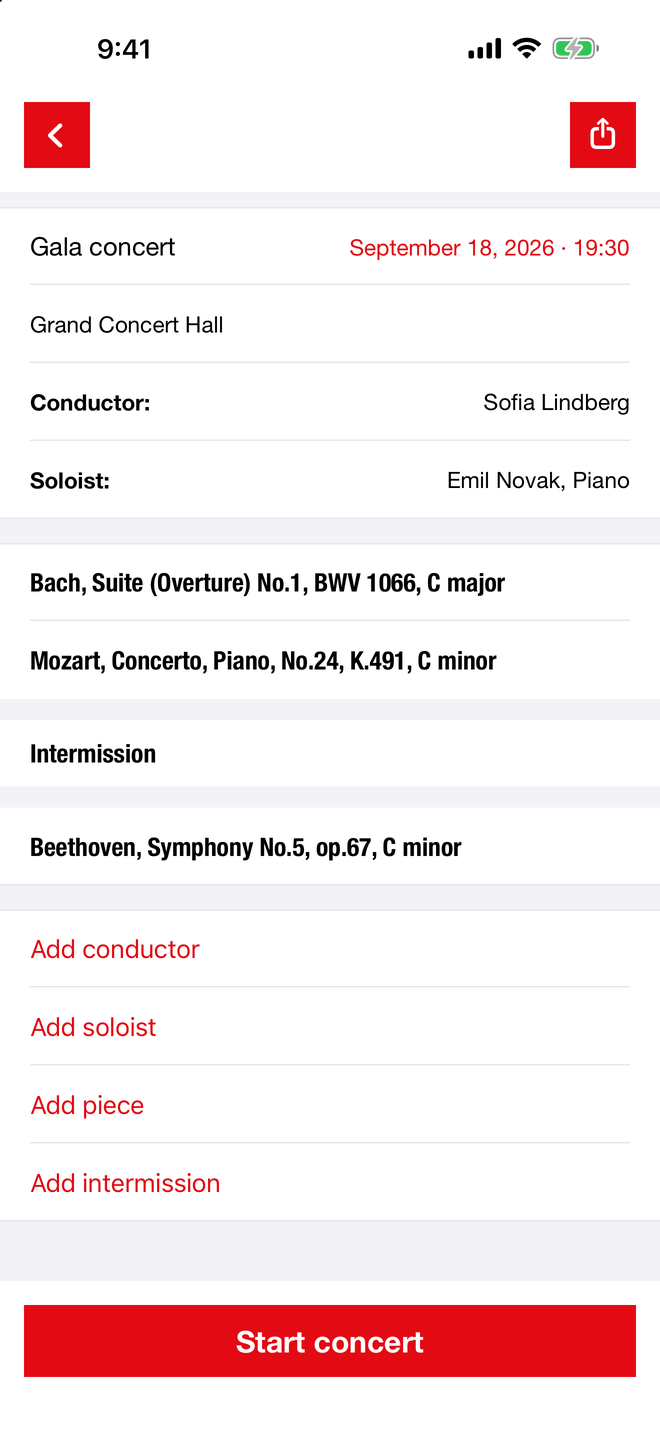
Tap New concert and you land straight on the program page. Tap Add piece, type a title, press return — the field stays open, so you can enter a whole program without lifting your hands. An empty return closes it.
Add intermission puts the interval wherever you are in the list. The other links — concert name, conductor, soloist, venue — each disappear once used, so the menu shrinks as the program fills in.
Fixing what you typed
Double-tap anything in the header to edit it: the concert name, the venue, a conductor, a soloist. Same for a piece title in the list. Tap the red date to open the calendar and the time.
Long-press and drag a piece to reorder it — it crosses the intermission freely. Swipe left to delete one.
The second night
On the concert list, long-press a concert to Duplicate it: the same program, timings cleared, dated the following day. Two performances of one program cost you one entry.
The PDF is also a program page. Export a concert you haven't timed yet and the sheet ends after the last work — no total, nothing to cross out. A clean, printed program for the musicians' folders, set in the same typography as the app. Afterwards, the same sheet comes back with every duration on it.
02
During the concert
One piece is current at a time. Start it when the music starts, stop it when the applause does.
Timing a piece
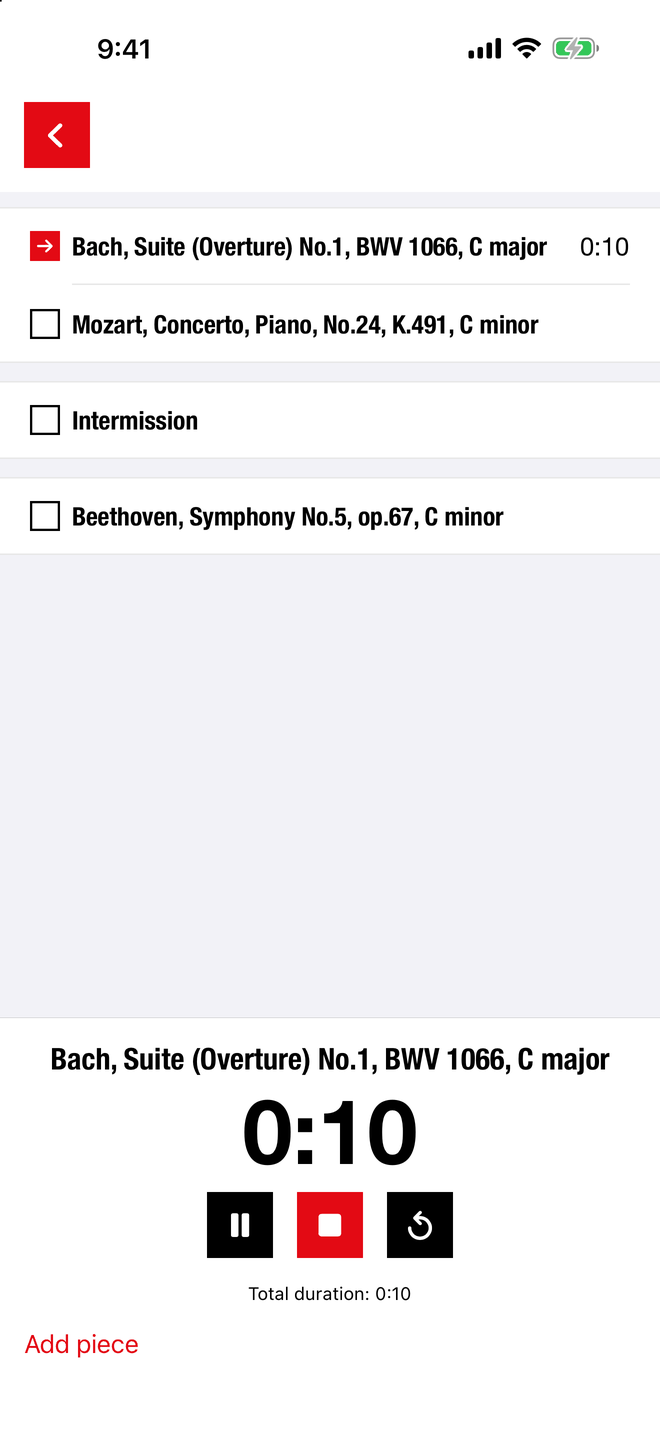
Start concert opens the timing screen. Red buttons are the routine ones — start, stop. Black buttons are the ones you shouldn't normally need — pause, reset. Stopping a piece records its duration and moves to the next.
Turn the phone
Rotate to landscape and the timer fills the screen, chrome and all removed. It is meant to be legible from across a stage, at a glance, without your reading glasses.
The intermission
The interval runs as a countdown rather than a stopwatch, with a warning before the end and a tuning A at zero. It counts on the wall clock, so locking the phone or leaving the app loses nothing.
An encore
Add piece is on the timing screen too. When you see the soloist settle back onto the bench, add a row — name it ??? if you must and rename it once you recognise what they're playing. It is there whenever the timer is stopped — between pieces, and after the last one — and out of the way while a piece is being timed.
03
From your Apple Watch
The iPhone stays in your pocket or on the stand. Your wrist does the timing.
The same buttons, on the wrist
Open a concert on the iPhone and the watch follows: the current piece, its running time, and the same buttons as the phone, in the same colours. Nothing is set up on the watch itself. If Concert Timer isn't on your watch yet, open the Watch app on the iPhone and install it from there.
A press counts when you make it
Each press carries the instant your finger touched the button. If the watch needs a moment to reach the iPhone — just after you raise your wrist, for example — the phone still stops the piece at that instant. A slow connection never adds a second. The press is silent, by design: you press Stop and the timer stops.
The end of the intermission
When the countdown reaches 0:00, the watch offers the red Start for the next piece — even with the iPhone locked in your pocket. One press begins the second half at the instant you make it.
On your watch face
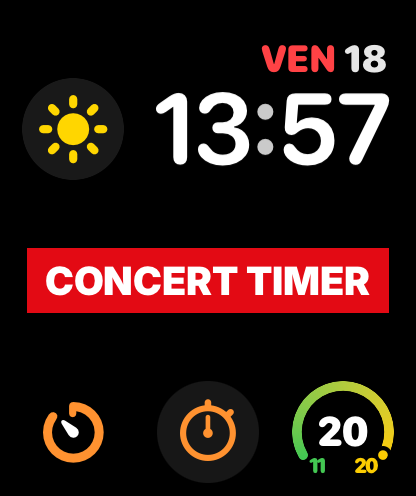
Add Concert Timer to your watch face and the current piece and its time are always one glance away, updating by themselves the moment a concert opens on the iPhone. With no concert open it shows a red Concert Timer band; tap it to open the remote. With your wrist down the timer keeps counting on the dimmed screen.
The iPhone stays in charge
The watch keeps no concert and records no timing — everything lives on the iPhone, exactly as before. A flat watch battery, or a watch left in the hotel room, costs you nothing.
After a watchOS update
If Concert Timer has disappeared from your watch face, open the app on the watch once, or choose it again when editing the face.
04
When something goes wrong
You stopped a piece too early
A pause between movements can sound exactly like an ending. Tap the back arrow and the piece reopens with the timer still running — the time it spent stopped is added back, so the recorded duration is exactly what it would have been. Not a single second is lost.
Already started the next piece? Pause it, then tap the back arrow: the seconds it ran go back to the piece they belonged to. The arrow goes back two steps, so even Stop, Start, Stop can be undone.
You pressed Reset by mistake
Reset sits right beside Stop. If you hit it, tap the back arrow: the time comes back, and if the music was still playing, every second since the Reset is added too.
The concert wasn't over
A last movement can end on a silence that sounds final. Right after the last Stop, the back arrow on the Concert complete screen reopens the piece, on the iPhone or on the watch. Tapping elsewhere on that screen does nothing, so the arrow can't be lost by accident; the red button at the top takes you back to the program.
You need to adjust a duration
Double-tap a duration to change it. The keypad works like a stopwatch: type the digits and they fill from the right, no colon to enter. 1 4 3 0 is fourteen minutes and thirty seconds. The first digit you type replaces the old value; delete to edit it instead.
You left the app, or it was closed
Nothing is lost. A running timer is anchored to the clock, not to the app, so leaving the screen, locking the phone, taking a call, or closing the app entirely costs you nothing. Reopen the concert and it picks up exactly where it should be.
05
Afterwards
The personnel manager wants the timings tonight. The archives want them tomorrow.
The timing sheet
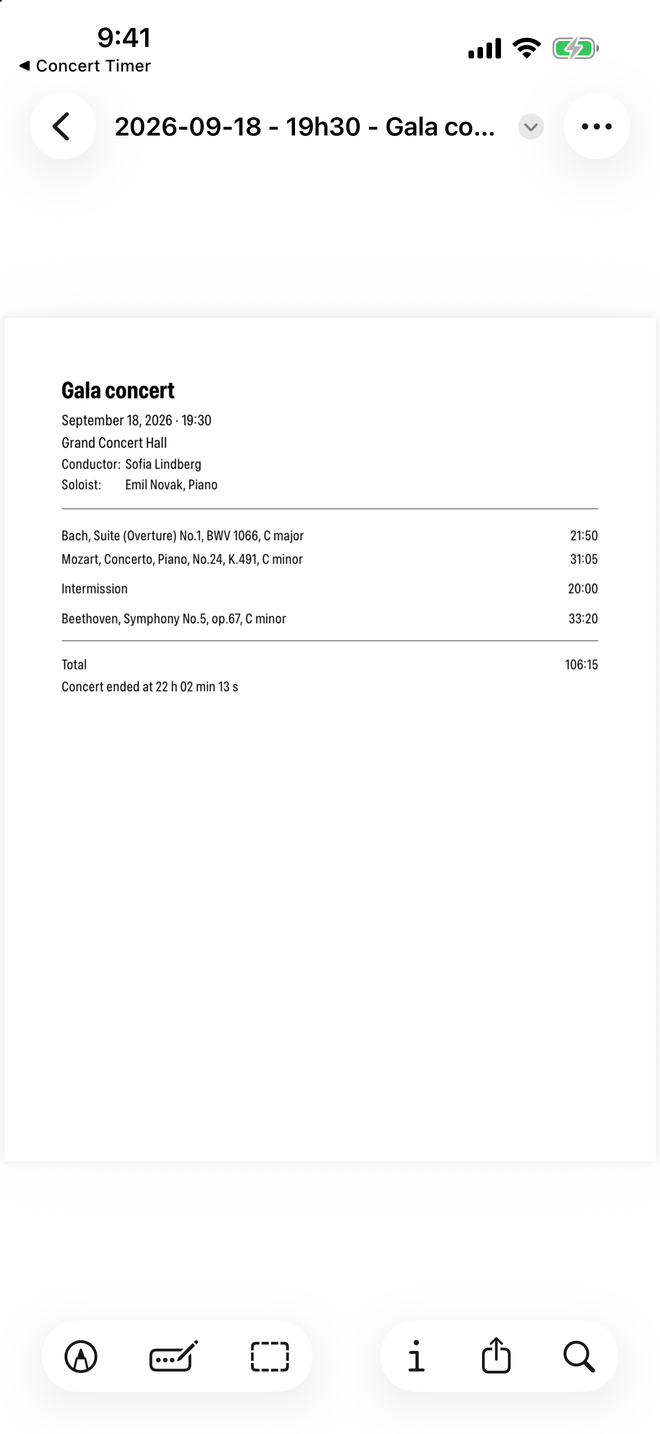
The share button on the program or timing screen produces a dated PDF: every work with its duration, the intermission, the total, and the time the concert actually ended against the time it was scheduled to begin. Send it by mail, message or AirDrop without leaving the app.
See a real one — exported from the app, not redrawn for this page.
Sending a program to a colleague
On the concert list, long-press a concert and choose Share concert. That sends the program itself — not a PDF — and a colleague who also has Concert Timer can open it and have the whole evening ready to time.
06
Settings
The gear on the first screen. Four things, and they stay as you set them.
| Setting | What it does |
|---|---|
| Intermission length | Five to sixty minutes; twenty by default. This is what the countdown starts from. |
| Warning before end | A discreet signal that the interval is nearly over — five minutes by default. It can't exceed the intermission itself, and shortens automatically if you shorten the interval. |
| A at the end | A tuning note when the countdown reaches zero, so the orchestra can tune without waiting for anyone. On by default; turn it off and the interval simply ends. |
| Pitch | 392, 415, 440, 441, 442 or 443 Hz — Baroque through modern. 442 by default. It plays through the speaker even if the phone is on silent. |
Language
Concert Timer speaks eleven languages and has no language setting of its own — it follows your iPhone, so it is already in your language the first time you open it.
To read it in a different language from the rest of your phone, open the iPhone's Settings, find Concert Timer (under Apps on recent versions of iOS), and choose Language. Useful on tour, when the programme is in one language and your colleagues work in another.
English, French, German, Spanish, Italian, Dutch, Swedish, Danish, Norwegian, Finnish and Japanese. If a term reads wrong in your language, write to me — corrections from people who do this work are always welcome.
07
Every hidden gesture
The app stays uncluttered by keeping these out of sight. Here they all are in one place.
| Gesture | What it does |
|---|---|
| Long-press a concert | Duplicate it, or share the program with a colleague |
| Swipe left on a concert | Delete it, after a confirmation |
| Double-tap a name | Edit the concert name, venue, conductor or soloist |
| Double-tap a piece | Rename it |
| Double-tap a duration | Correct a timing, stopwatch-style |
| Tap the red date | Open the calendar and the start time |
| Long-press and drag a piece | Reorder the program, across the intermission |
| Swipe left on a piece | Remove it from the program |
| Rotate the phone | Fullscreen timer, readable across the stage |
| Back arrow, after a Stop or a Reset | Bring the piece back, losing nothing — up to two steps back |
| Tap Concert Timer on the watch face | Open the remote on your wrist |
| Open a shared program | A colleague's .concert file opens straight into the app |